Open the Board
Learn how to open an existing board. You can open and continue using boards saved on your local device or cloud storage.
How to access
Tap the More button on the tool bar to expand the full menu, then select Open Board from the Board section.
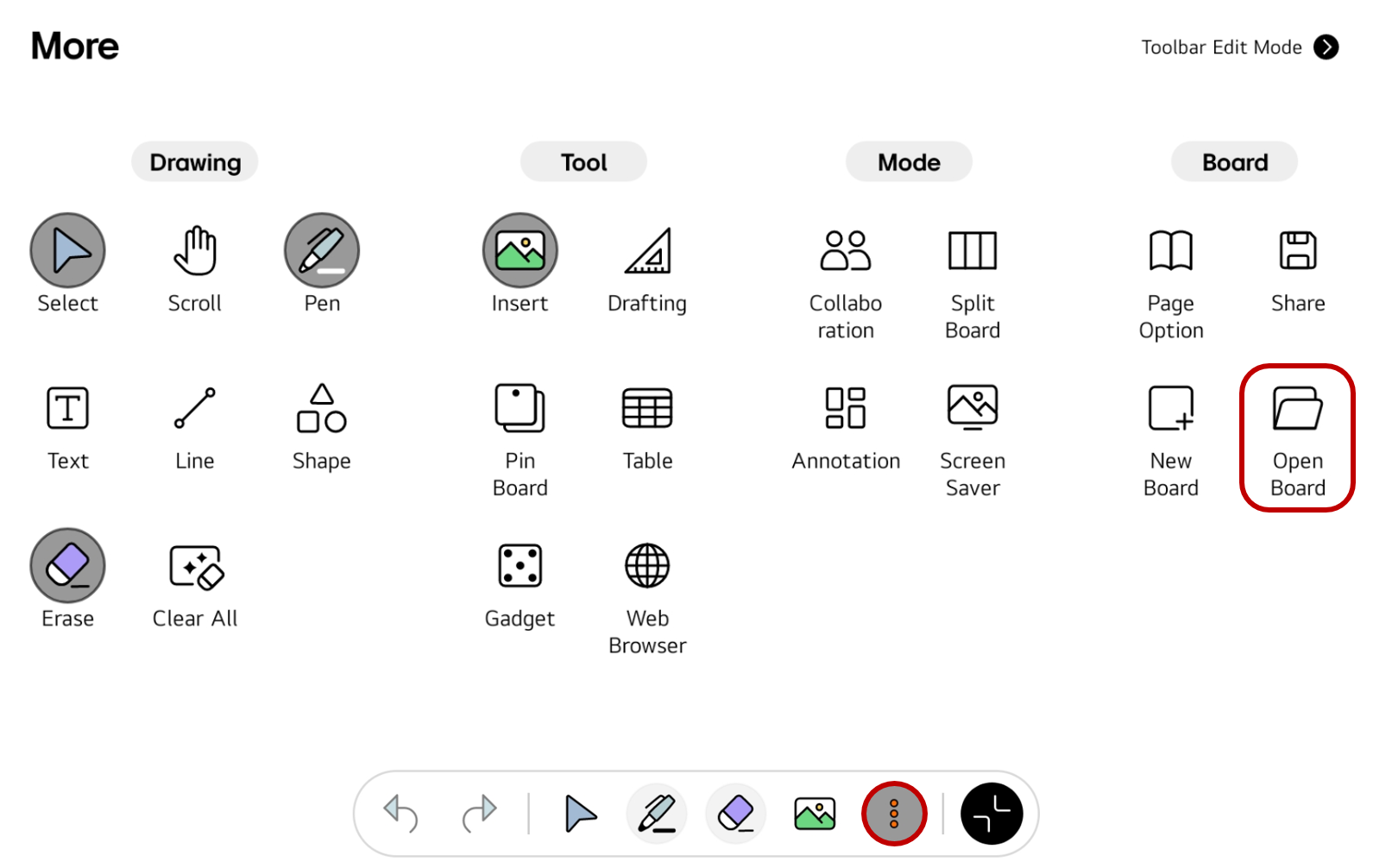
If you frequently use this item, refer to Customize Tool bar to pin it to the Tool bar for easy access.
Usage & tips
You can see the following options for opening the board.
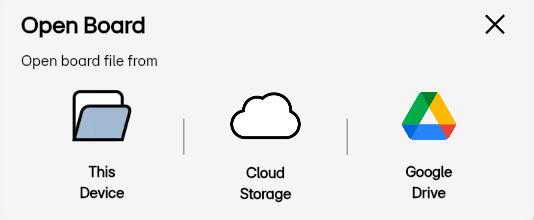
Open from This Device
You can open board files saved on your current device.
-
Select
This Device. -
When the file explorer opens, choose the desired board file.
Open from Cloud Storage
You can open board files saved in the cloud provided by LG CreateBoard Lab.
-
Select
Cloud Storage. -
This feature requires you to sign in. If you haven’t signed in, select
Sign into log in to the LG Create Board Lab. -
When the file explorer opens, choose the desired board file.
Open from Google Drive
You can open board files saved in Google Drive.
-
Select
Google Drive. -
This feature may require you to sign in to Google Drive. If you haven’t signed in, sign in with your Google account.
-
When Google Drive is connected, select the desired board file
Board file format
The .lab is a file extension used in LG CreateBoard Lab and is a board file format. In some save options, you can choose to save the board in either .pdf or .lab format.