Annotation
How to access
If the Tool bar already displays the Annotation button, you can simply tap it to execute. Otherwise, tap the More button to display the entire menu and then choose Annotation.
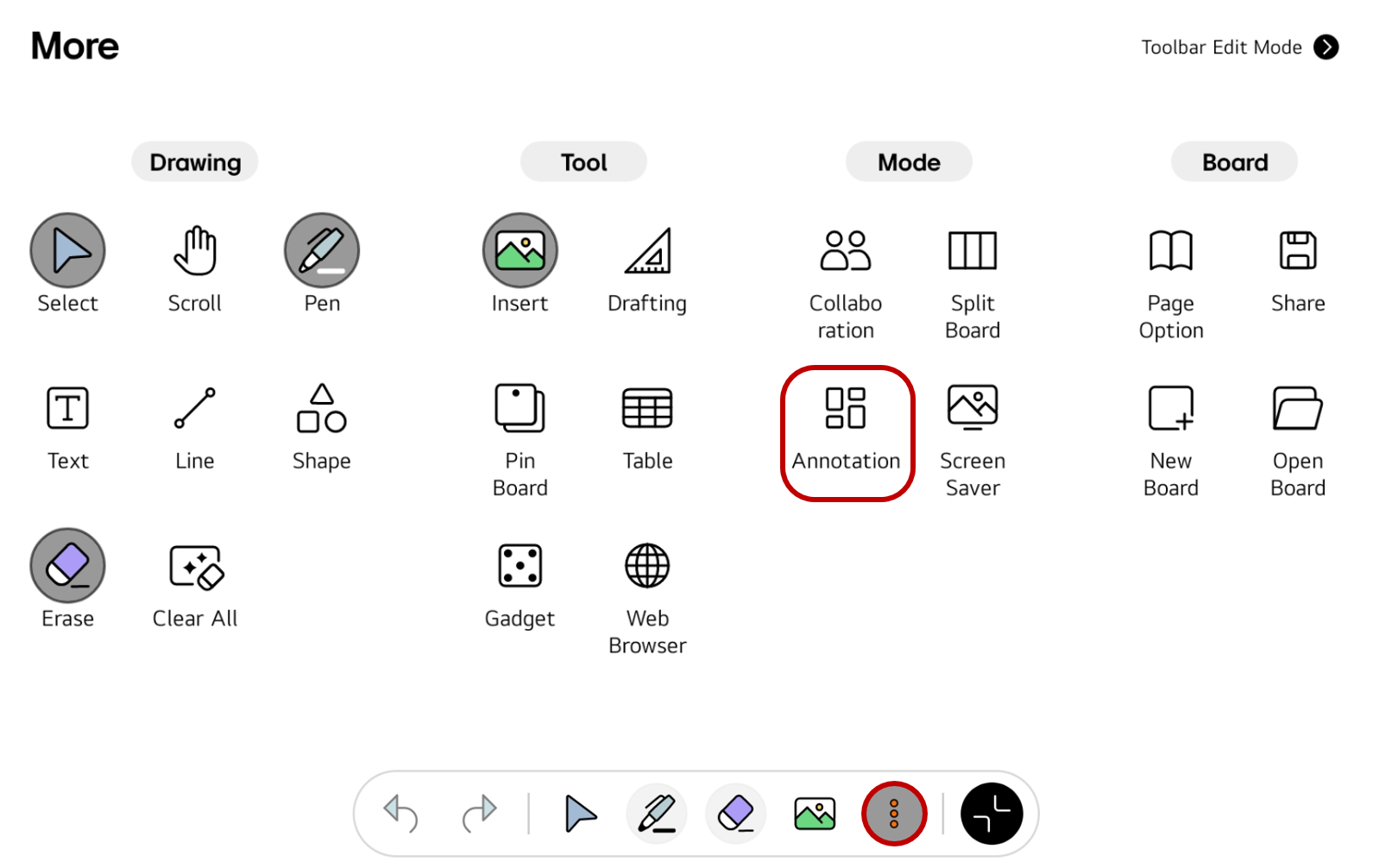
If you frequently use this item, refer to Customize Tool bar to pin it to the Tool bar for easy access.
Usage & tips
The Image Slide mode changes the board screen to a screensaver. If you need to hide the screen or have a break during the class or meeting, you can use this mode to easily switch to a screensaver.
Start and end the Annotation
-
Run the
Annotationwith the desired content inserted on the board. -
Select the pen to use for the annotation and add the desired comments.
-
When you end the
Annotation, it returns to the original state without any changes to the original content.
🚫
The content of this document may differ from the actual operation of LG CreateBoard Lab and is subject to change without notice.