Screen Saver
How to access
If the Tool bar already displays the Screen Saver button, you can simply tap it to execute. Otherwise, tap the More button to display the entire menu and then choose Screen Saver.
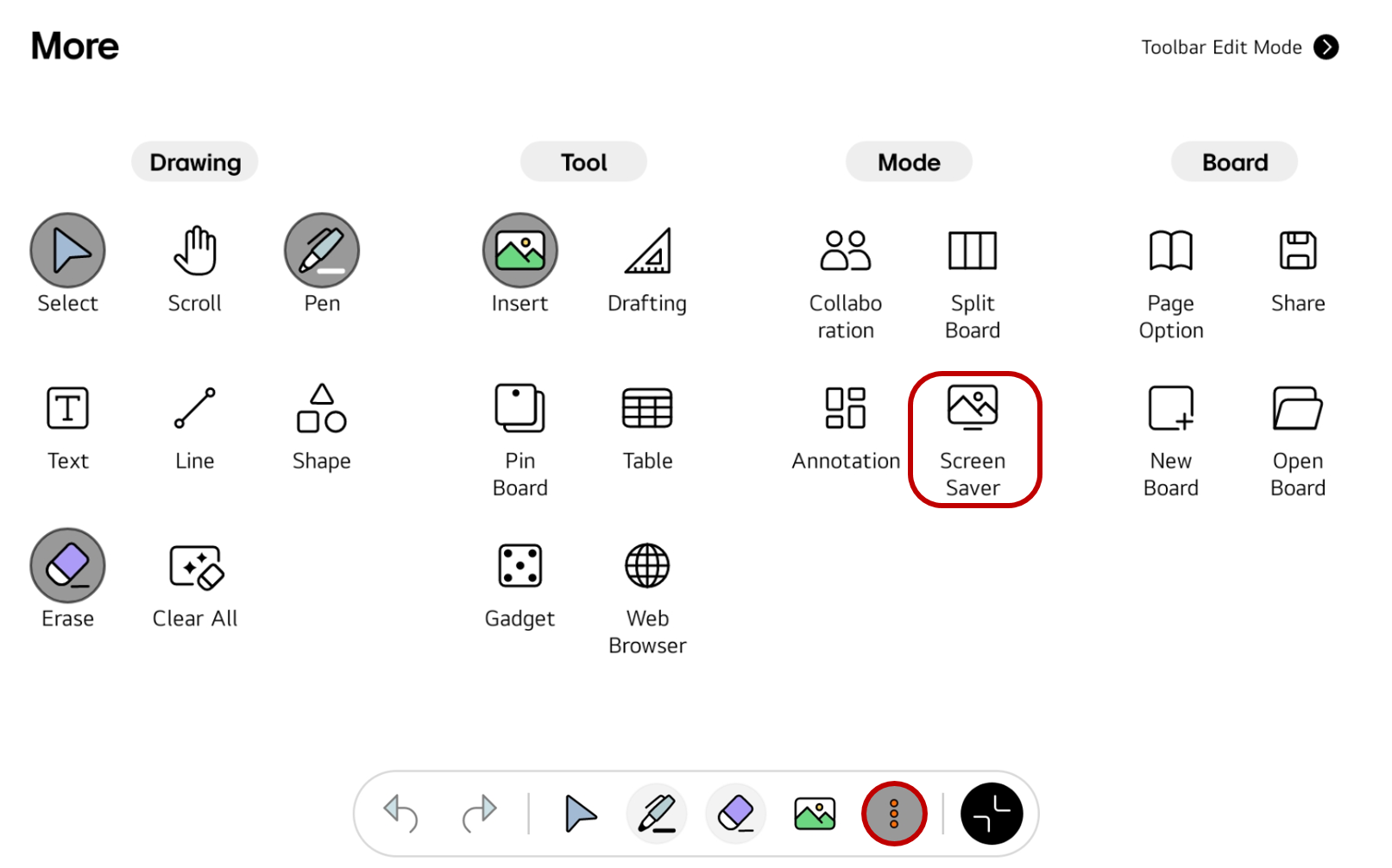
If you frequently use this item, refer to Customize Tool bar to pin it to the Tool bar for easy access.
To quickly execute the Screen Saver mode, use the 5 Finger Long Press for 3 Seconds gesture.

Usage & tips
The Screen Saver mode changes the board screen to a screensaver. If you need to hide the screen for security reasons or take a break during a class or meeting, you can use this mode.
Customize the Screen Saver
You can create your custom screensaver.
-
Access https://createboard.lgbusinesscloud.com and sign in.
-
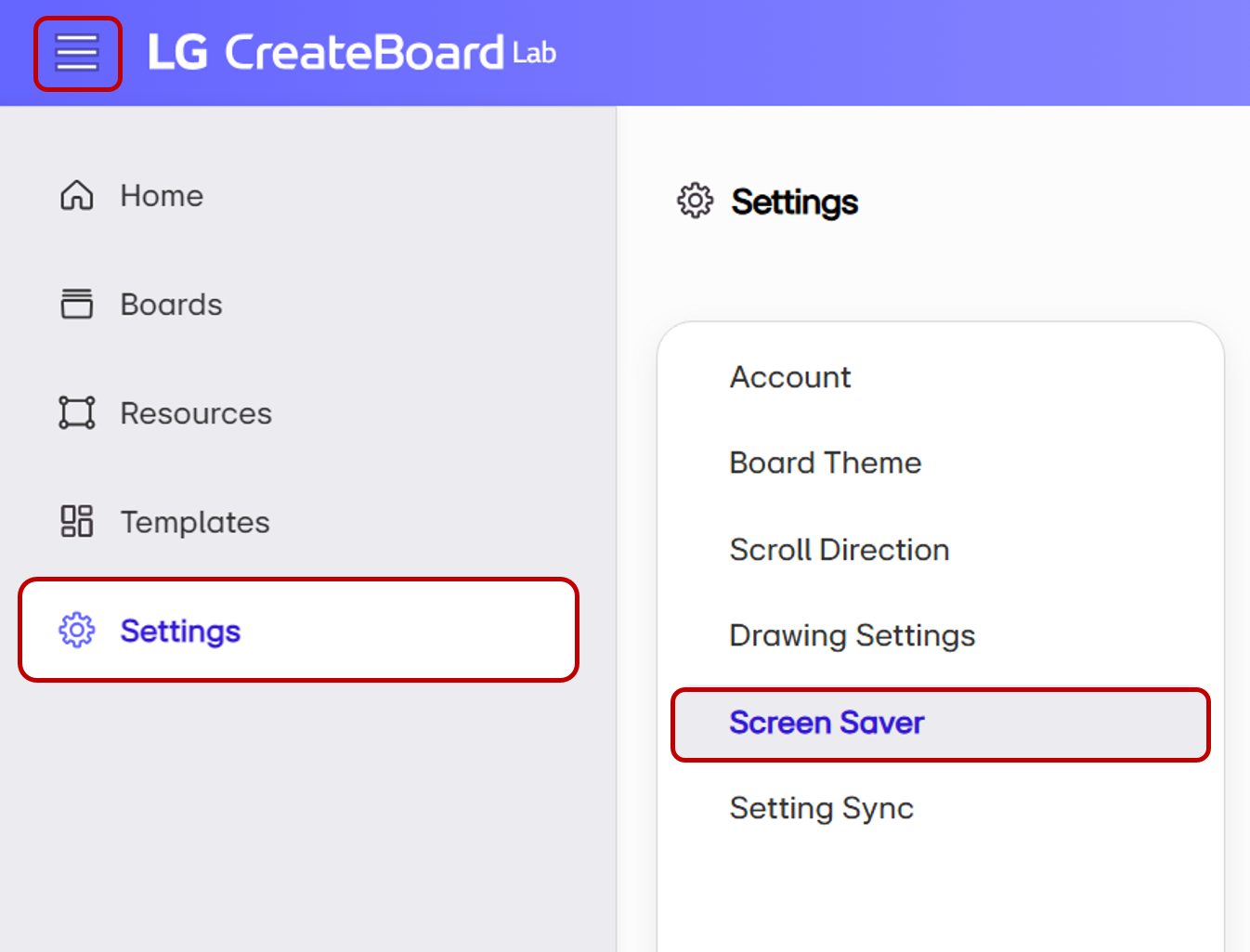
Open the navigation menu at the top left and go to
Settings>Screen Saver.
-
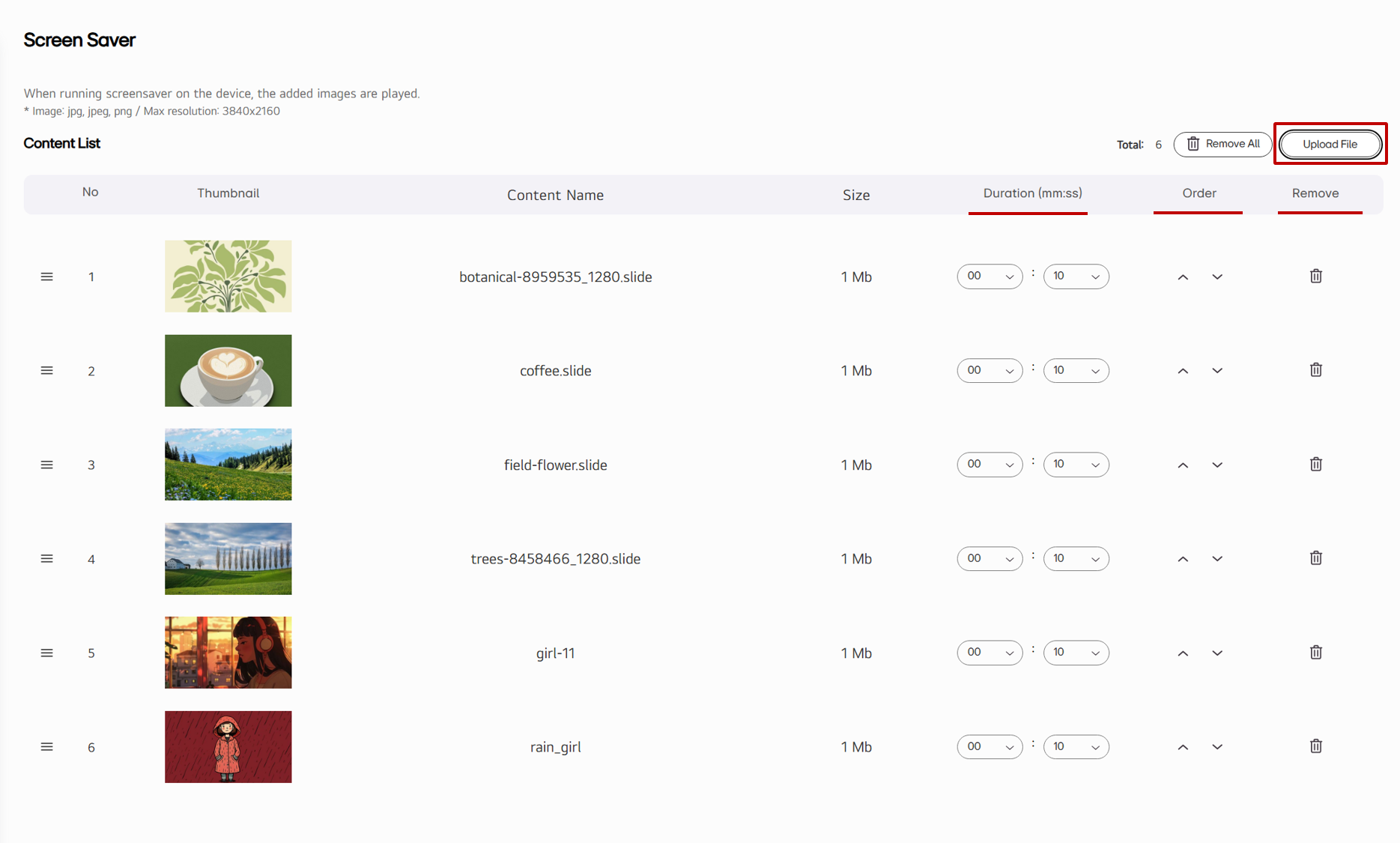
Select
Upload Fileto upload your desired images. -
Delete any images you won’t use.
-
Set the playback duration for each image and adjust the order of the images.
Exit the Screen Saver
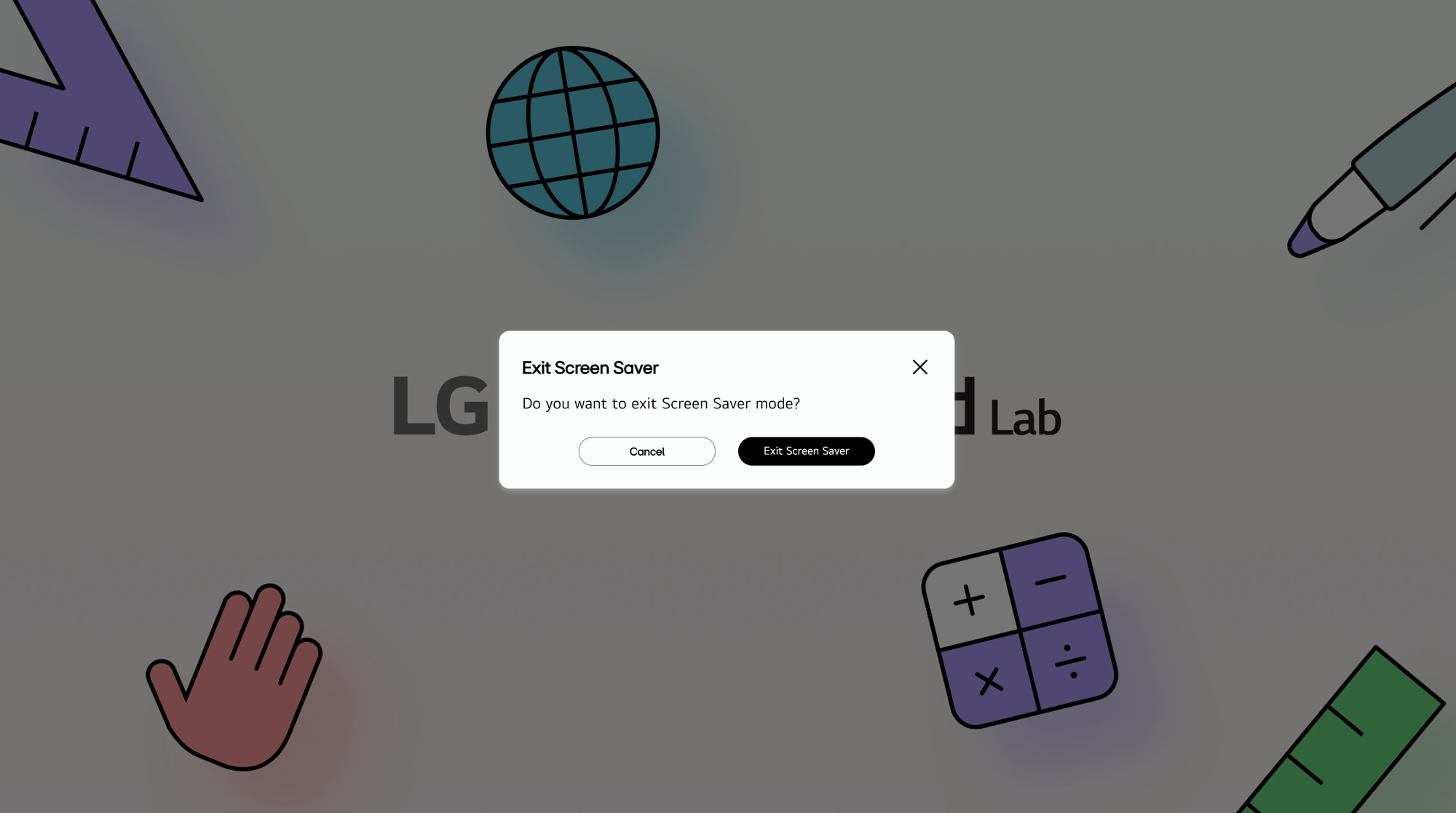
To exit the Screen Saver mode, tap the screen. The pop-up window shown below will appear, allowing you to exit the Image Slide mode.