Insert
How to access
If the Tool bar already displays the Insert button, you can simply tap it to execute. Otherwise, tap the Insert button to display the entire menu and then choose Insert.
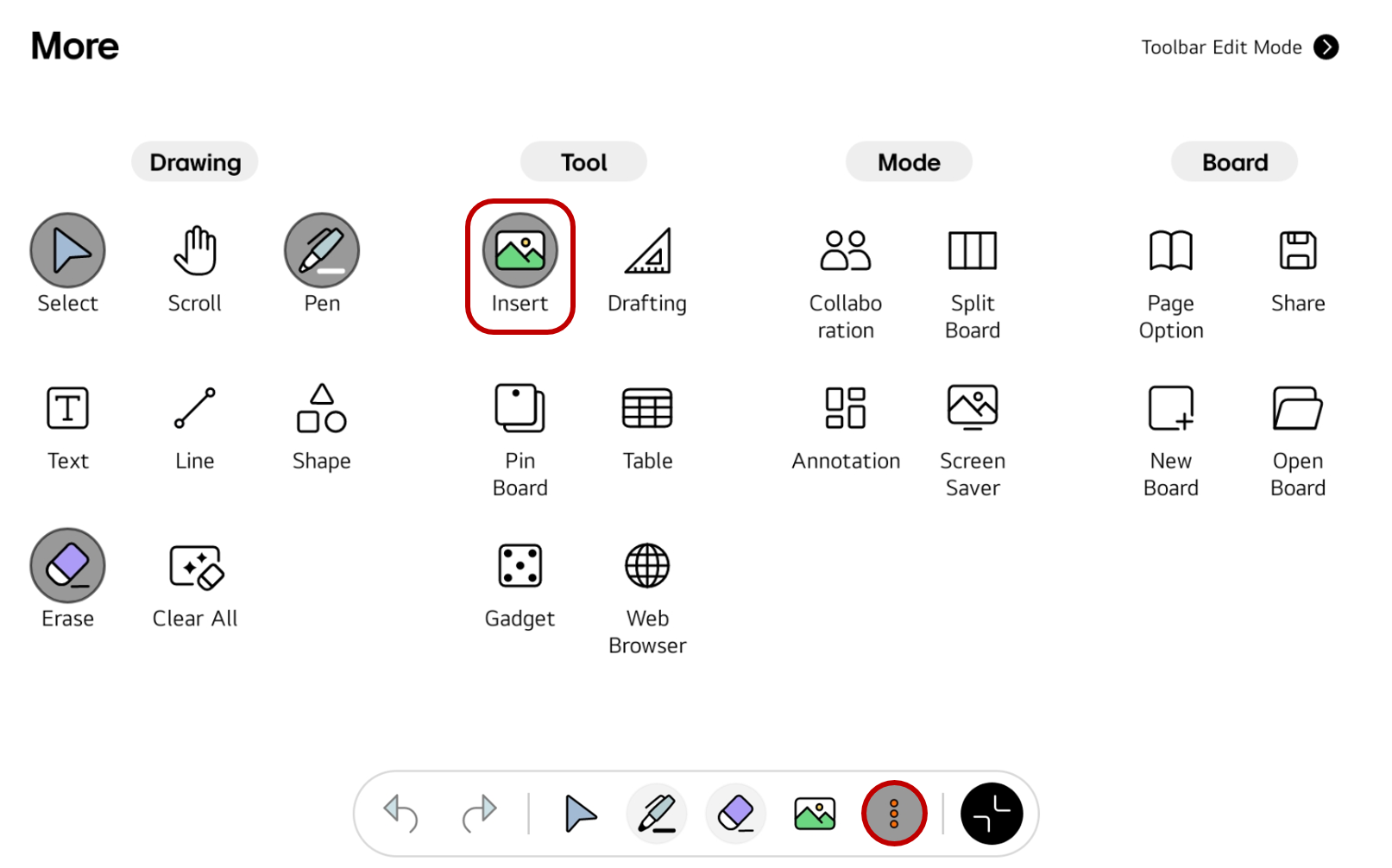
If you frequently use this item, refer to Customize Tool bar to pin it to the Tool bar for easy access.
Usage & tips
You can select one of the following options to insert various types of files (images, audio, video, objects, PDF, etc.) into the board.
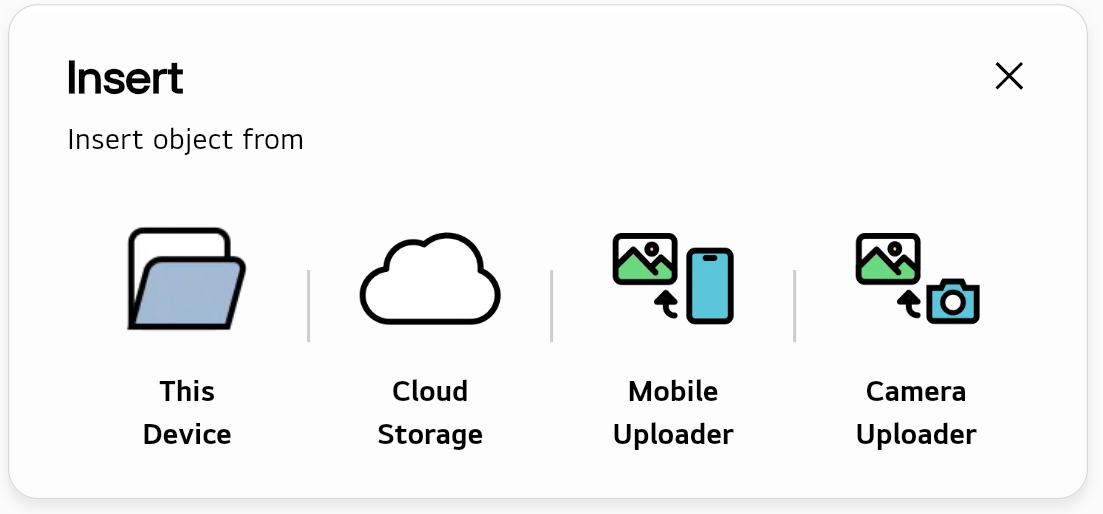
Insert from this device
-
To insert a file from your local storage, select
This Device. -
When the file explorer for local storage appears, find and select the desired file.
Insert from cloud storage
-
To insert a file from the cloud storage provided by LG CreateBoard Lab, select
Cloud Storage. -
When the file explorer for cloud storage appears, select the desired file type. Then, choose the desired file.
Insert using mobile uploader
-
To insert a file from your mobile device using the mobile uploader app, select
Mobile Uploader. -
A QR code that can run the mobile uploader will appear. Scan the QR code with your mobile device.
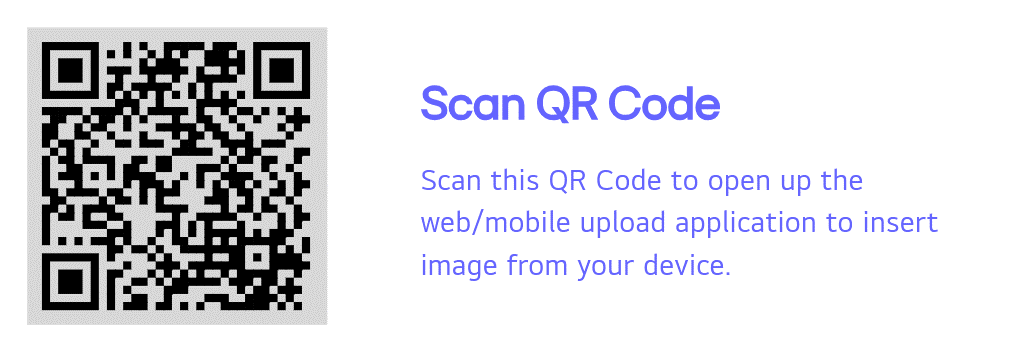
-
Select the desired file in the mobile uploader app.
Insert using camera uploader
If your device is connected to a camera, you can use the camera uploader to insert files taken with the camera into the board.
-
Select
Camera Uploader. -
When the camera uploader app is launched, take a photo with the camera and upload it to the board.