Basic Interface
Discover the basic menu structure, screen layout, and available gestures of the LG CreateBoard web app.
Main menus
When you tap the hamburger button at the top left corner of the screen, a navigation bar opens that allows you to navigate through the menus. It provides the following menus.

| Menu | Description |
|---|---|
| Home |
Provides a shortcut to the `My Storage` and `Featured Templates` menus as the app's home page. From these menus, you can quickly load or create a board. |
| Board |
Creates a new board or manages and loads existing boards. See the Board. |
| Resources |
Manages a wide range of resources (such as objects, images, video, audio, PDF files and more) that you can import and use on your board. See the Resources. |
| Templates |
Manages the various templates that can be applied to boards and creates a board from a template. See the Templates. |
| Settings |
Sets and manages board preferences. See the Settings. |
Board Editor
When you load a board or create a new one, a board editor will open that allows you to work with the board.
UI layout
The basic UI configuration is as follows.

| No | Item | Description |
|---|---|---|
| ① | Board Name | Edits the board name. |
| ② | Full View, -/+ | Expands the view to full screen or zooms in/out. |
| ③ | Share and Save | Saves or shares the board with various options. |
| ⑤ | Tool bar | provides tools necessary to edit a board. |
| ⑥ | Language | Sets the display language. |
Gestures
Learn about the gestures available in LG CreateBoard Lab and How to use them.
Drawing
Action |
Gesture |
Description |
|---|---|---|
Select |
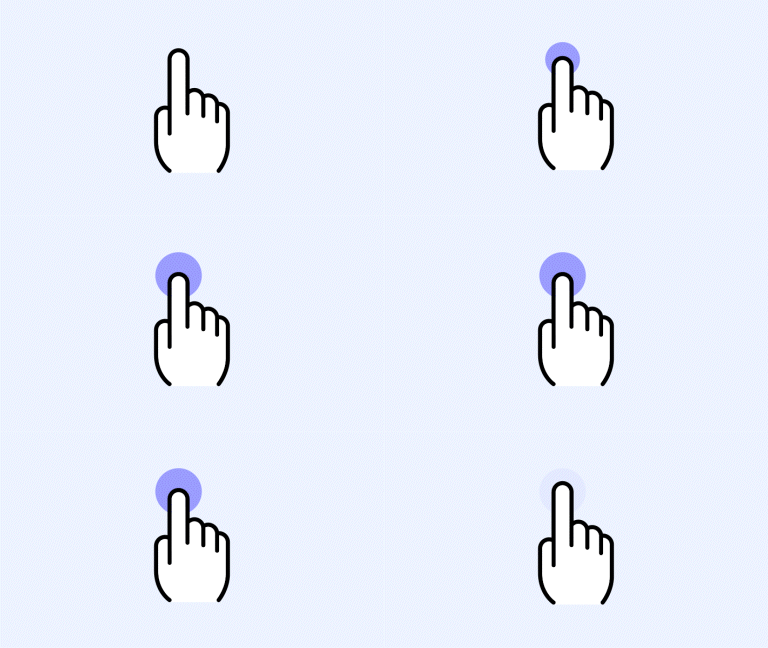
|
Long Press |
Undo |
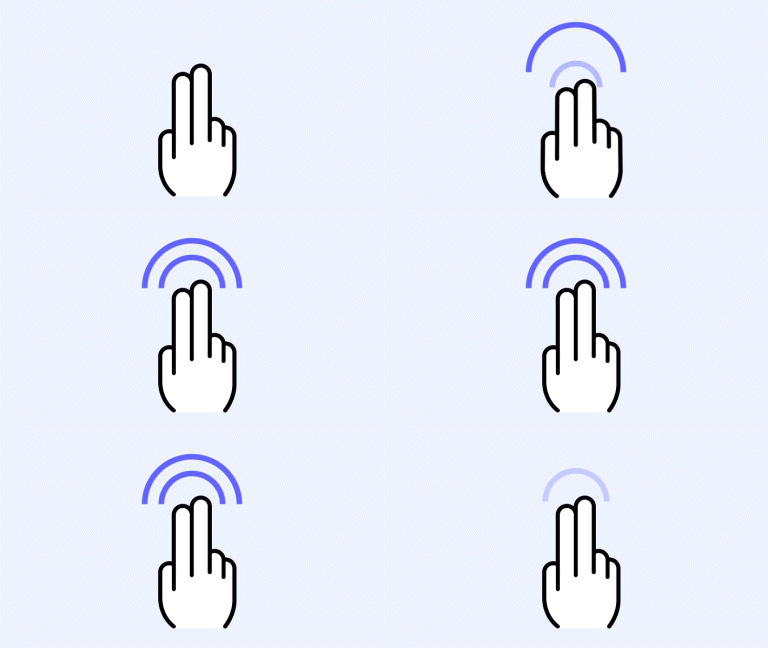
|
2 Finger Double Tap |
Eraser |
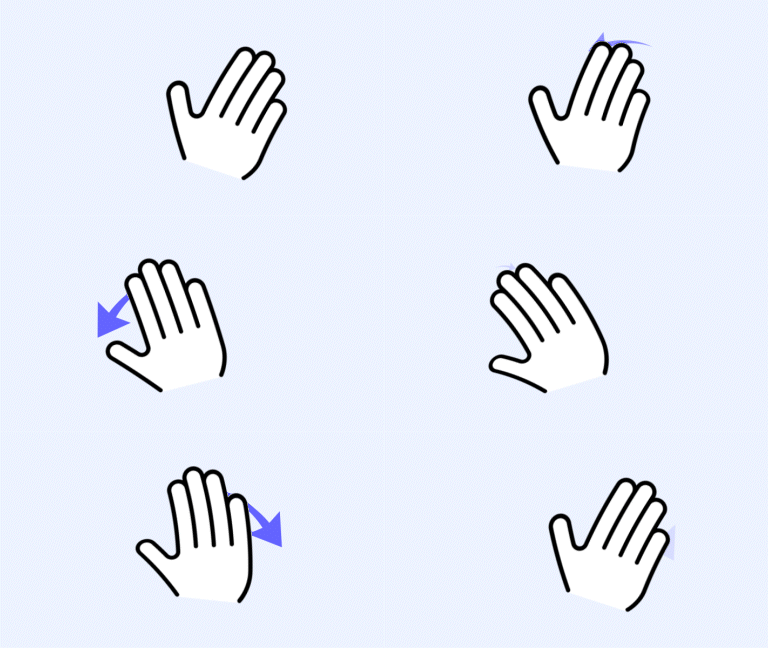
|
Palm |
Select/Pen Mode Change |
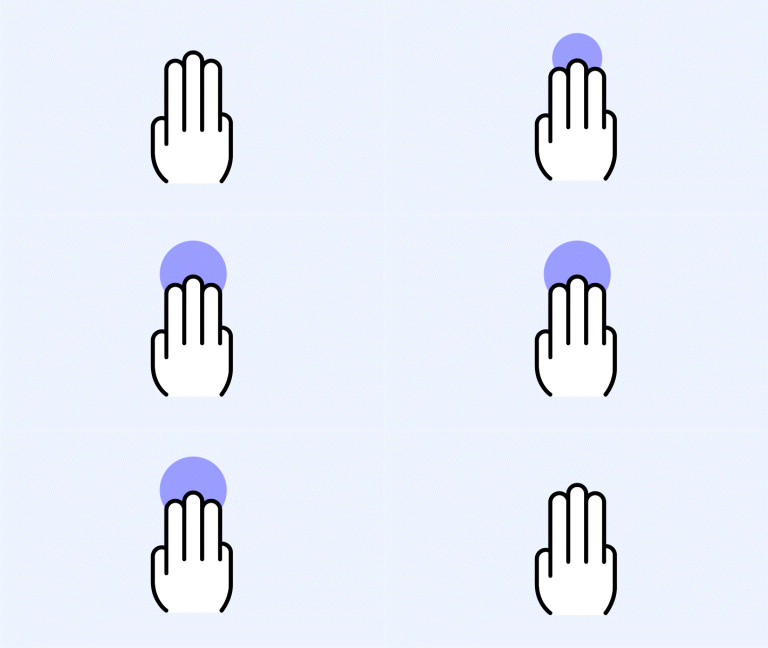
|
3 Finger Long Tap |
Board
| Action | Gesture | Description |
|---|---|---|
| Move Board | 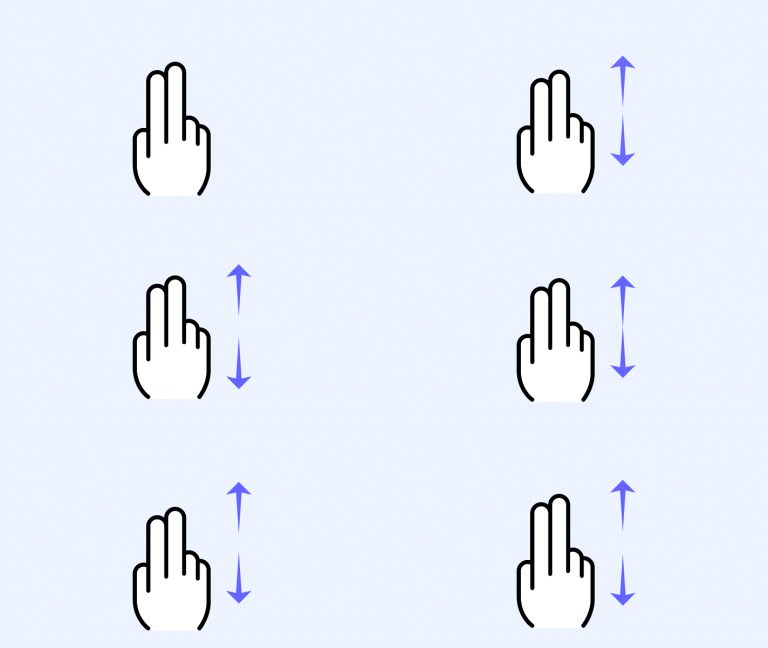
|
2 Finger Drag |
| Zoom In | 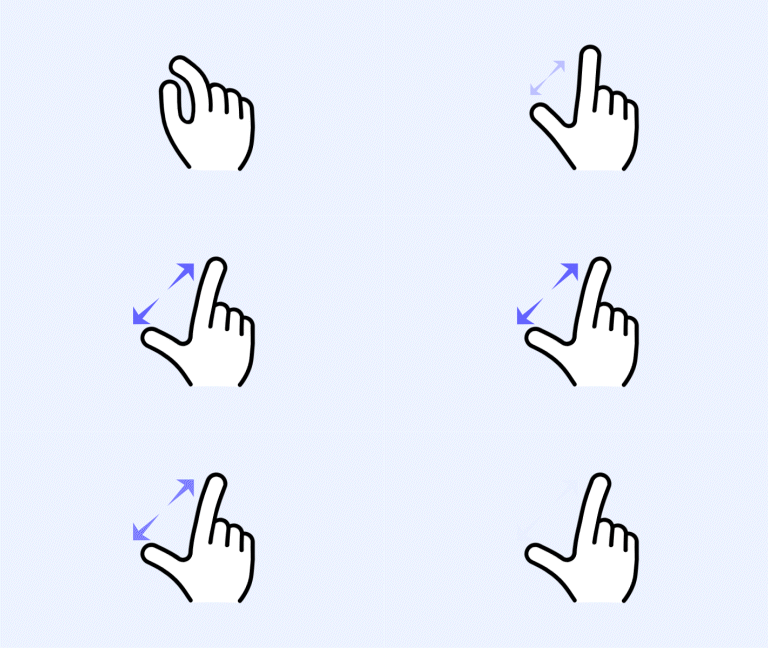
|
Pinch In |
| Zoom Out | 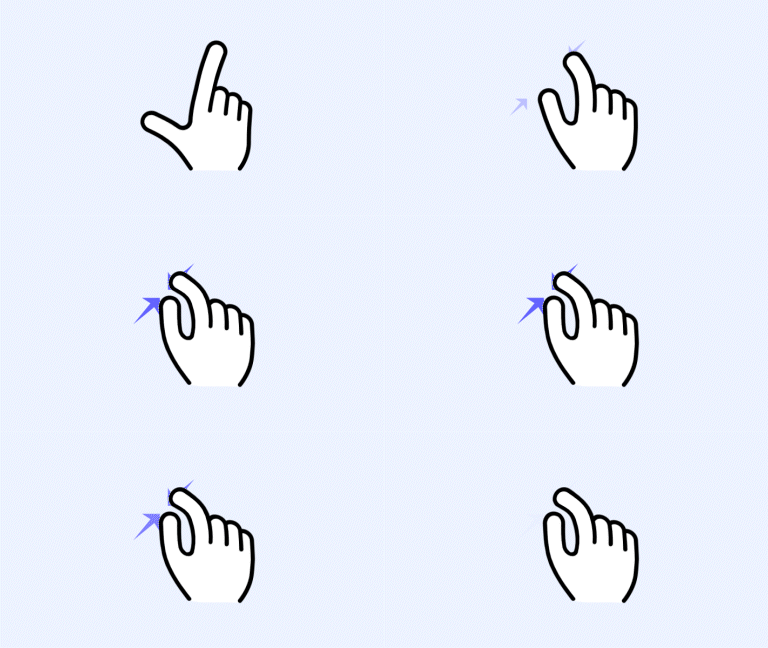
|
Pinch Out |
Page
| Action | Gesture | Description |
|---|---|---|
| Next Page | 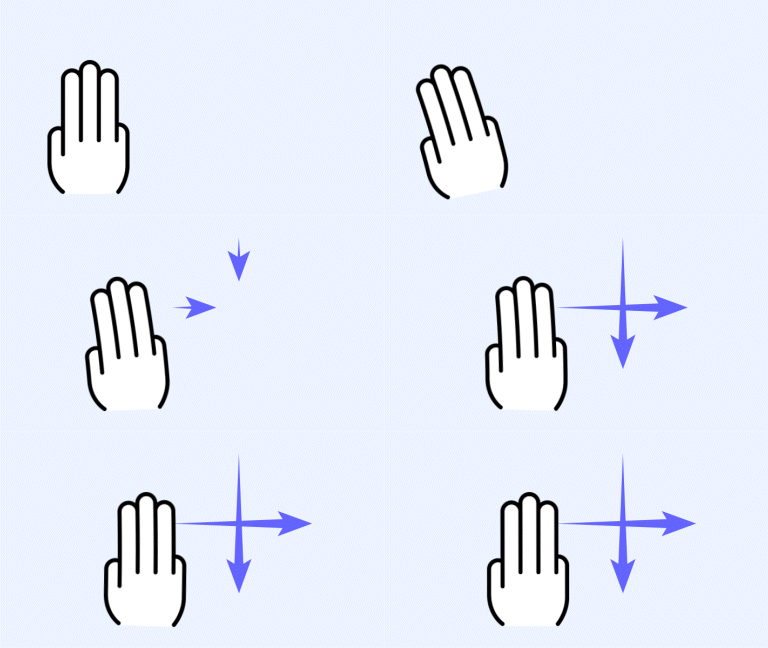
|
3 Finger Swipe (If your scroll direction is set to vertical, swipe down. If your scroll direction is set to horizontal, swipe right.) |
| Previous Page | 
|
3 Finger Swipe (If your scroll direction is set to vertical, swipe up. If your scroll direction is set to horizontal, swipe left.) |
Etc.
| Action | Gesture | Description |
|---|---|---|
| Play Image Slide | 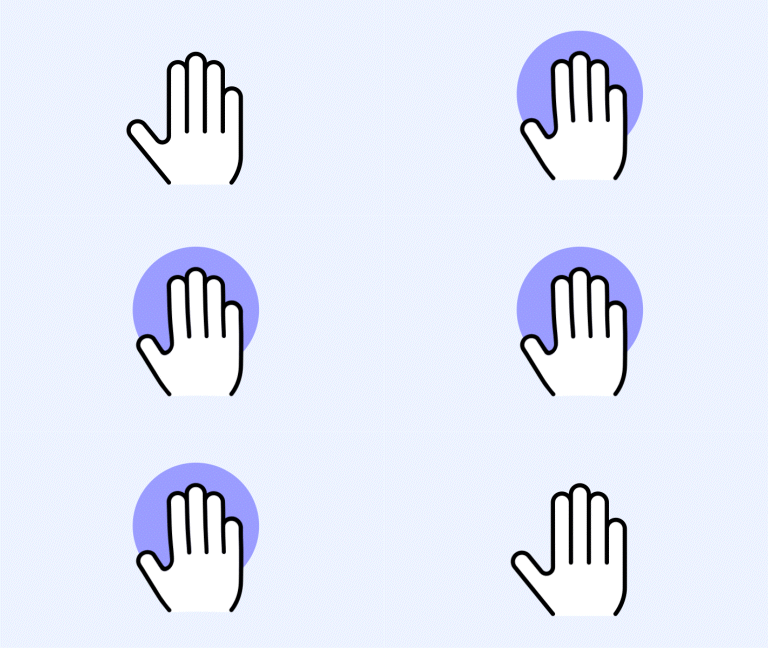
|
5 Finger Long Press for 3 Seconds |
| Attention Effect | 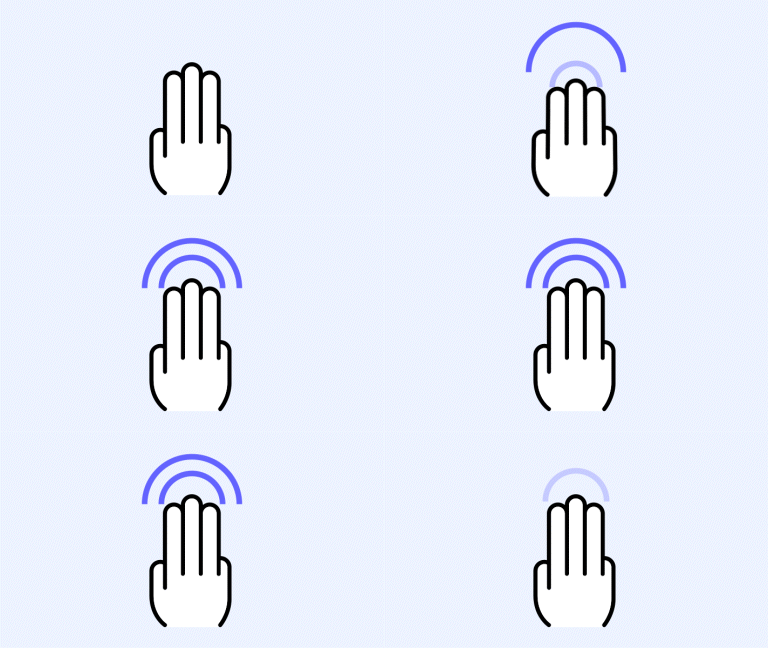
|
4-5 Finger Double Tap |
To learn about the features and usage of the Board Editor, see the Board Editor.